Step 1
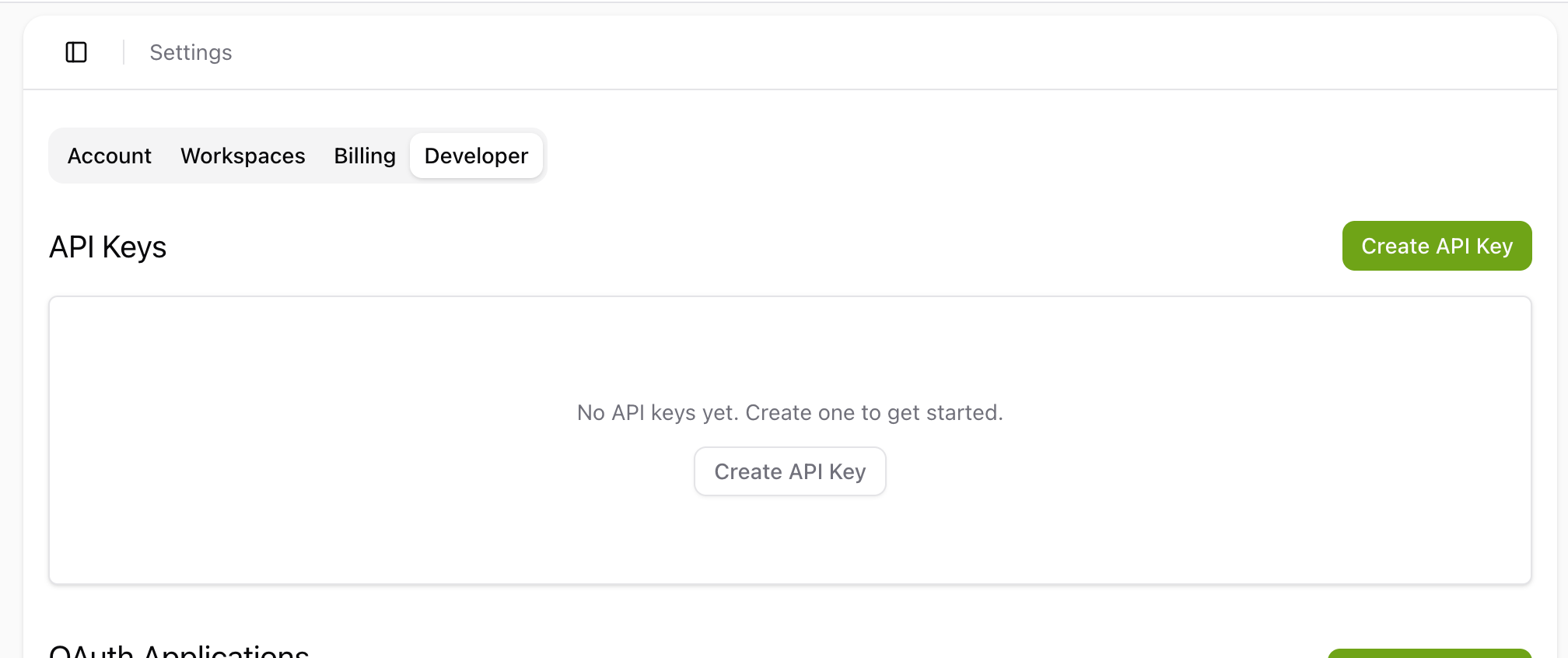
Open Settings → Developer
In your Tactic Social account, open Settings and click the Developer tab. You'll see the API Keys section.


Add Tactic Social as an MCP server in Visual Studio Code. Paste one JSON config, hit Start, and manage your social posts without leaving your editor.
Step 1
In your Tactic Social account, open Settings and click the Developer tab. You'll see the API Keys section.
Step 2
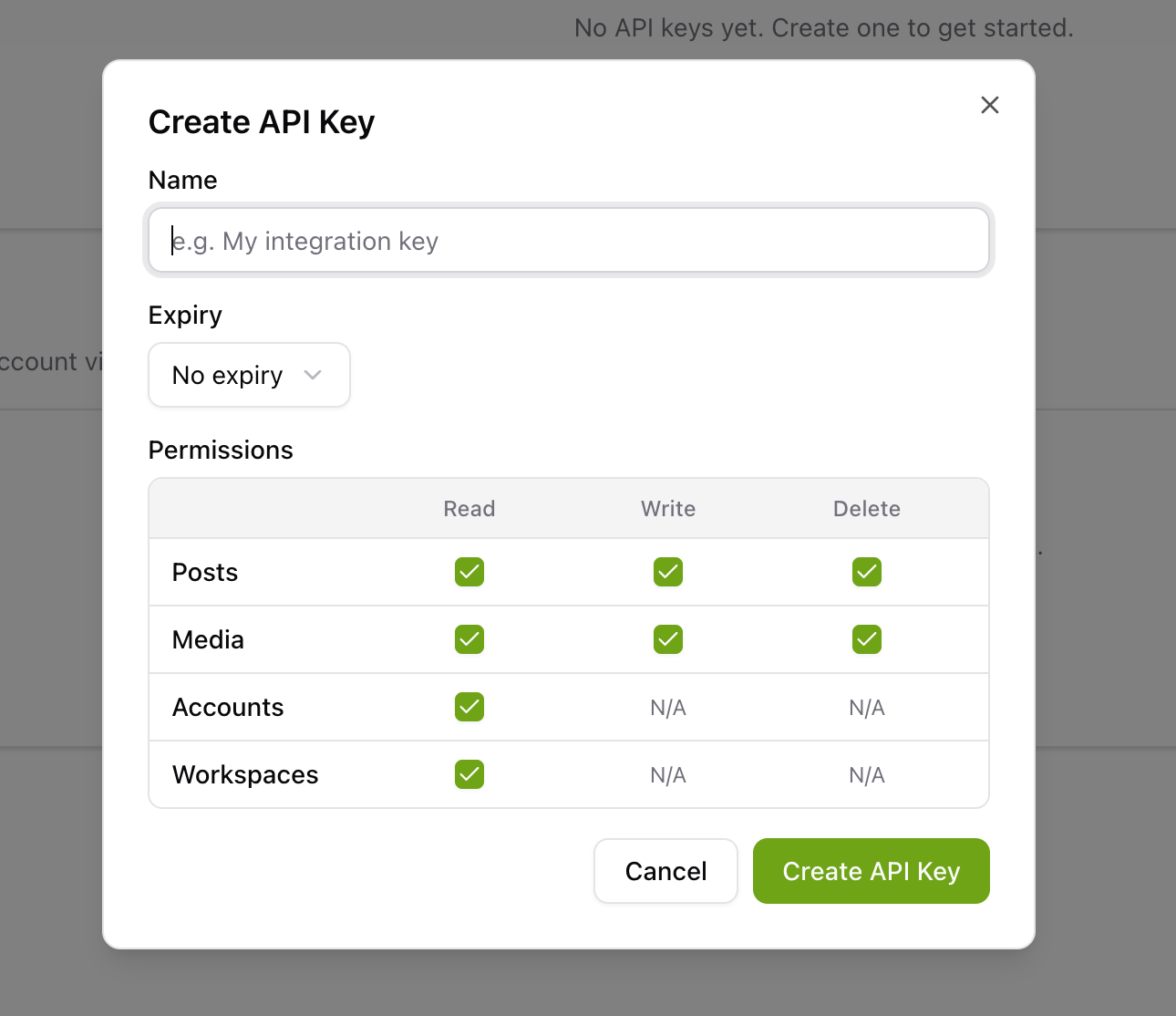
Click the green Create API Key button in the top right — a dialog will open to configure your key.
Step 3
Give your key a name (e.g. My integration key), choose an expiry, and select the permissions you need. Click Create API Key, then copy the key that appears — you'll use it in the config below.
Step 4
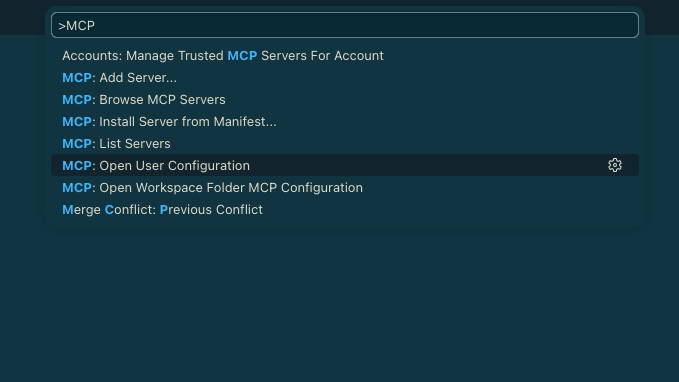
Open the command palette (⌘ Shift P on macOS or Ctrl Shift P on Windows), type >mcp, and select MCP: Open User Configuration.
Step 5
Copy the config below and paste it into the MCP configuration file. Replace YOUR_API_KEY with the key you copied. If the file already has a servers block, add tactic-social as a new entry inside it.
Step 6
Save the configuration file. Click the Start button that appears next to the tactic-social entry. The server connects immediately — no browser login required.

Step 1
Open the command palette (⌘ Shift P on macOS or Ctrl Shift P on Windows), type >mcp, and select MCP: Open User Configuration.
Step 2
Copy the config below and paste it into the MCP configuration file. If the file already has a servers block, add tactic-social as a new entry inside it.

Step 3
Save the configuration file. Click the Start button that appears next to the tactic-social entry.

Step 4
A browser window will open showing the Tactic Social authorization page. Click Approve to grant access. You'll be redirected back to VS Code with the connection active.
Try asking your AI assistant to get started:
Click the prompt to copy it
Tactic SocialPost content to all your social media platforms at once. Effortlessly schedule, crosspost, and optimize your content in one place.
Automation
Platforms
Size Guides
© Copyright 2026, All Rights Reserved by Tactic Social