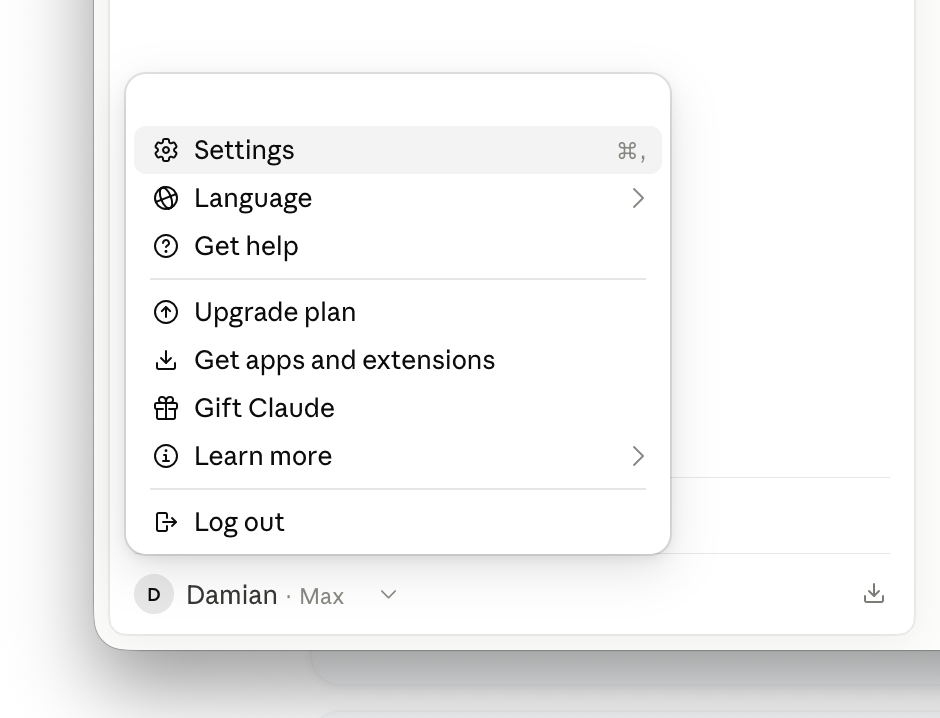
Step 1
Open Claude Desktop settings
Click the Claude menu in the menu bar (macOS) or the three-dot menu (Windows), then choose Settings.


Add Tactic Social as an MCP connector in 5 steps. Once connected, schedule, draft, and manage social posts using plain English — without leaving Claude.
A Claude Pro or Max subscription is required to add custom connectors.
Step 1
Click the Claude menu in the menu bar (macOS) or the three-dot menu (Windows), then choose Settings.
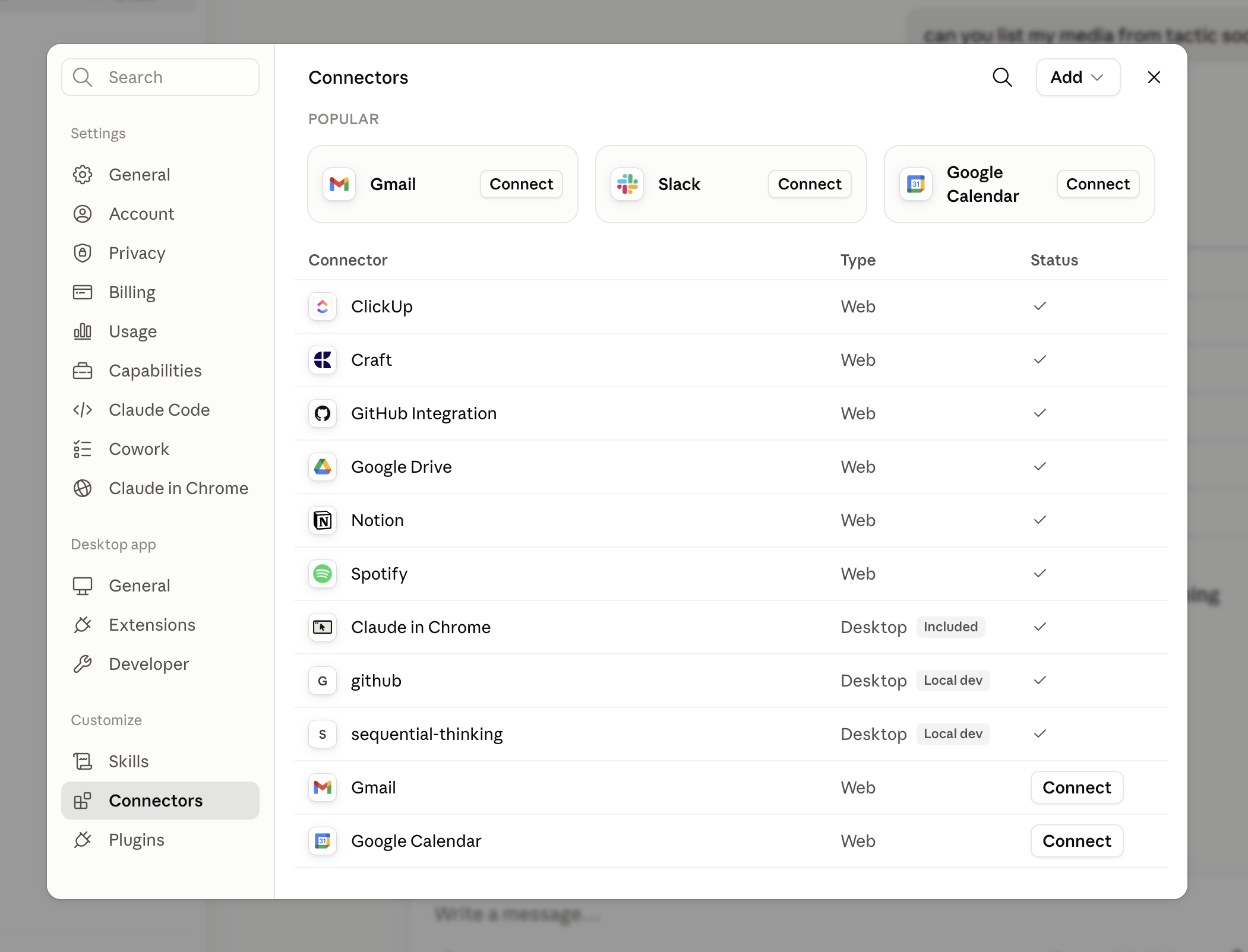
Step 2
In the Settings panel, click Connectors in the left sidebar. This is where MCP server connections are managed.
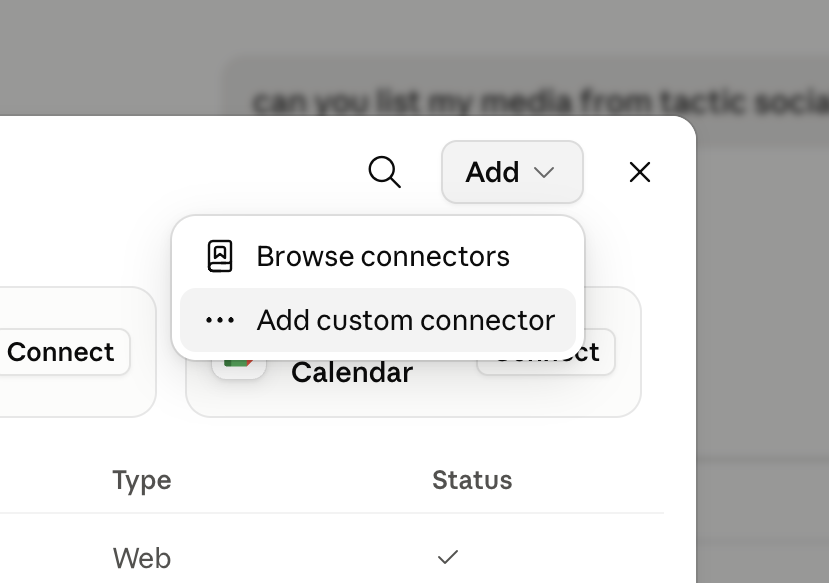
Step 3
Click the Add connector button. A dialog will open asking for the MCP server URL.
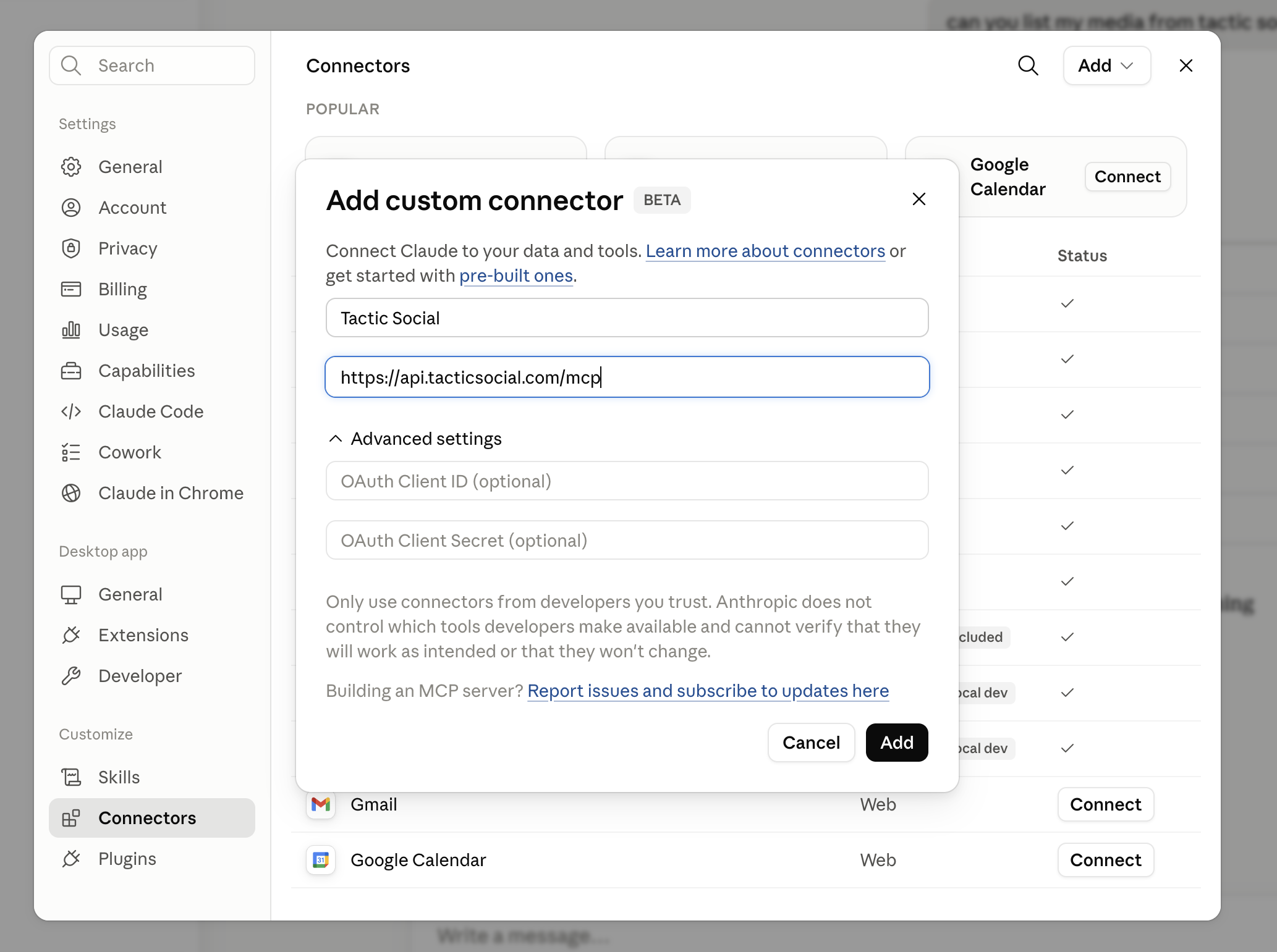
Step 4
Copy the URL below and paste it into the connector URL field, then click Connect.
https://api.tacticsocial.com/mcp 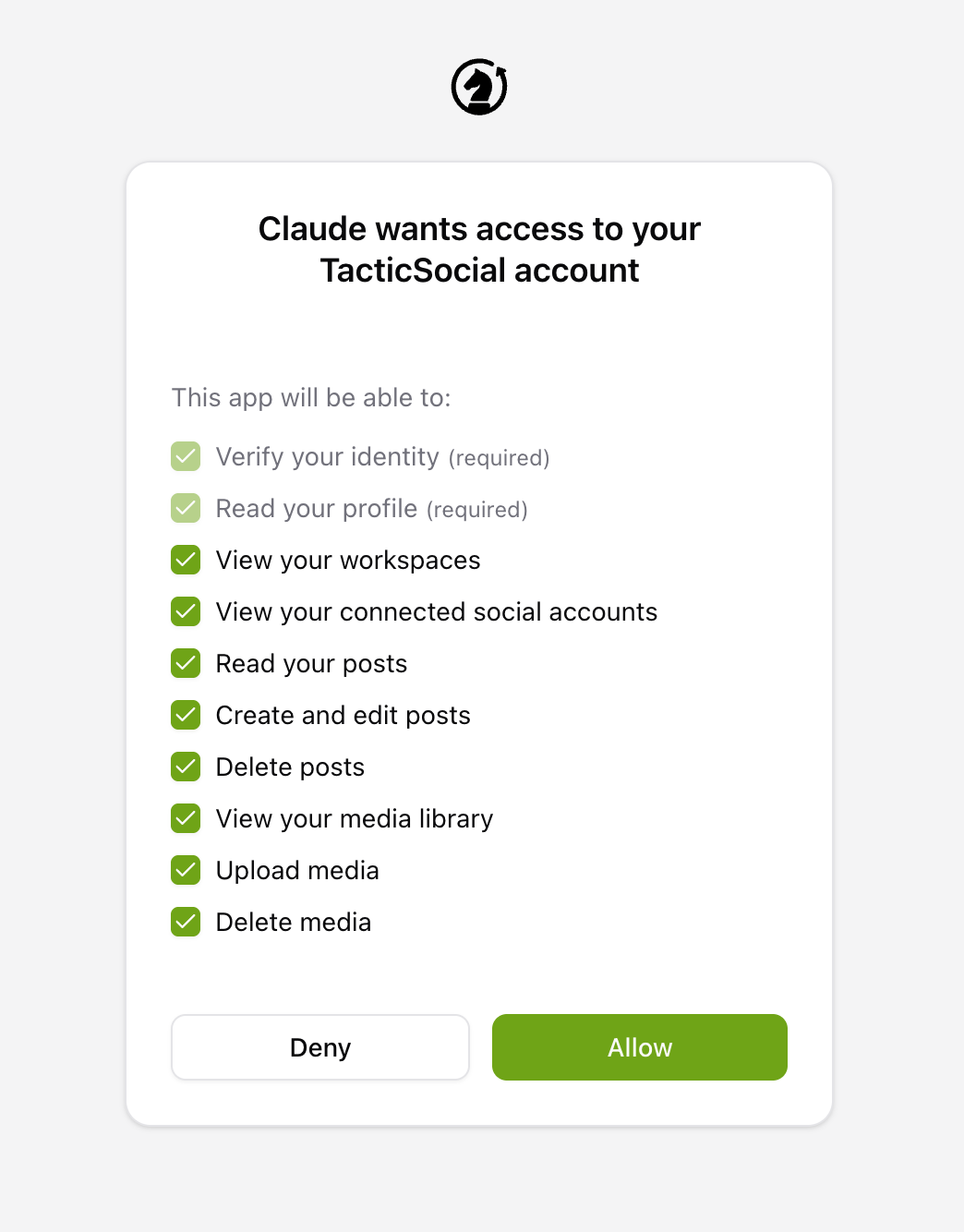
Step 5
A browser window will open asking you to authorize Tactic Social. Click Allow to complete the connection. You'll be redirected back to Claude Desktop.
Try asking your AI assistant to get started:
Click the prompt to copy it
Tactic SocialPost content to all your social media platforms at once. Effortlessly schedule, crosspost, and optimize your content in one place.
Automation
Platforms
Size Guides
© Copyright 2026, All Rights Reserved by Tactic Social