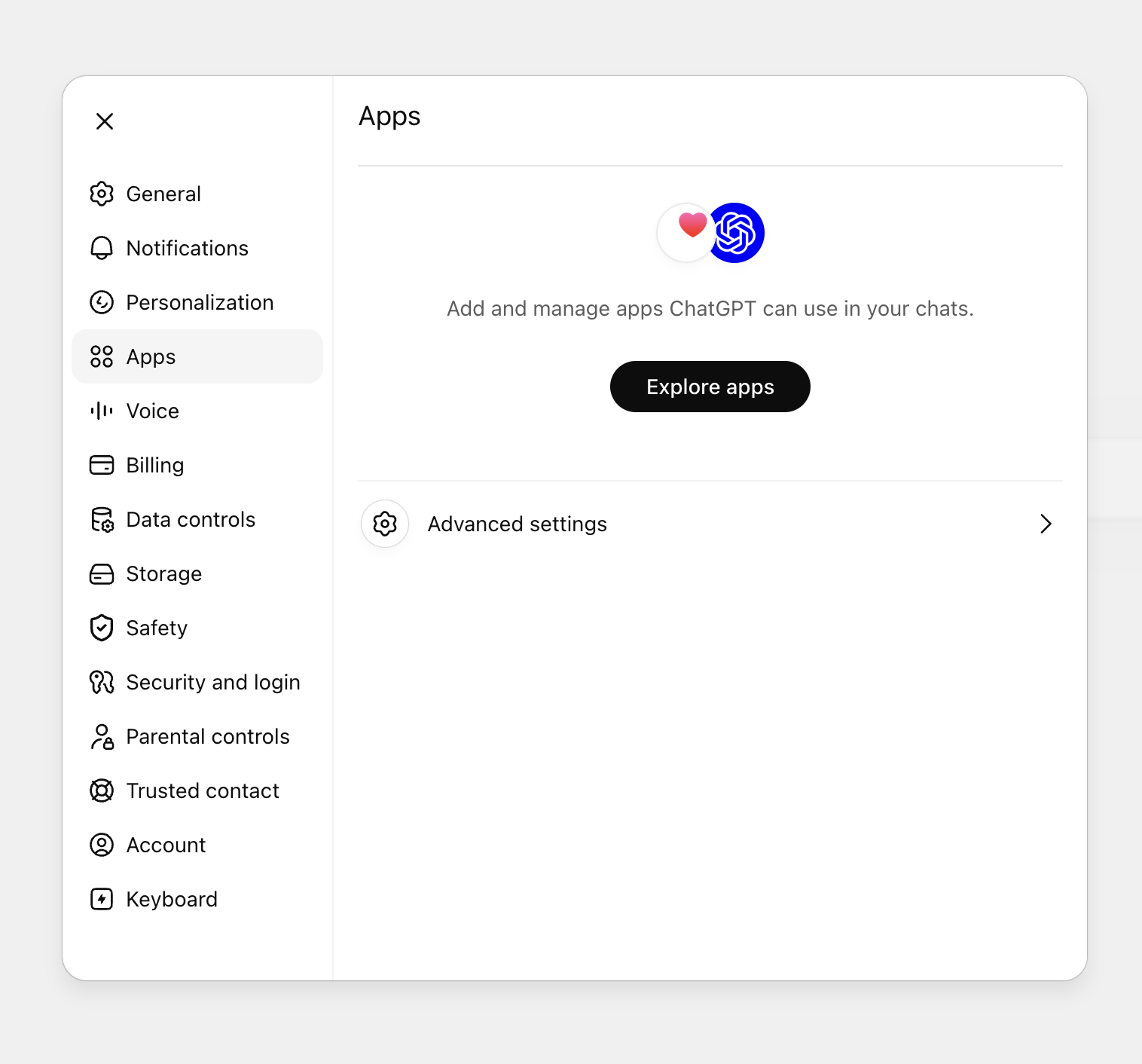
Step 1
Open Settings → Apps
Go to chatgpt.com, click your profile avatar, then select Settings. In the sidebar, click Apps.


Add Tactic Social as a custom MCP connector in ChatGPT. Once connected, you can create, schedule, and manage social posts using natural language in your conversations.
A ChatGPT Pro, Plus, Business, Enterprise, or Edu subscription is required to add custom apps. On Business, Enterprise, or Edu plans, admin privileges are required.
Step 1
Go to chatgpt.com, click your profile avatar, then select Settings. In the sidebar, click Apps.
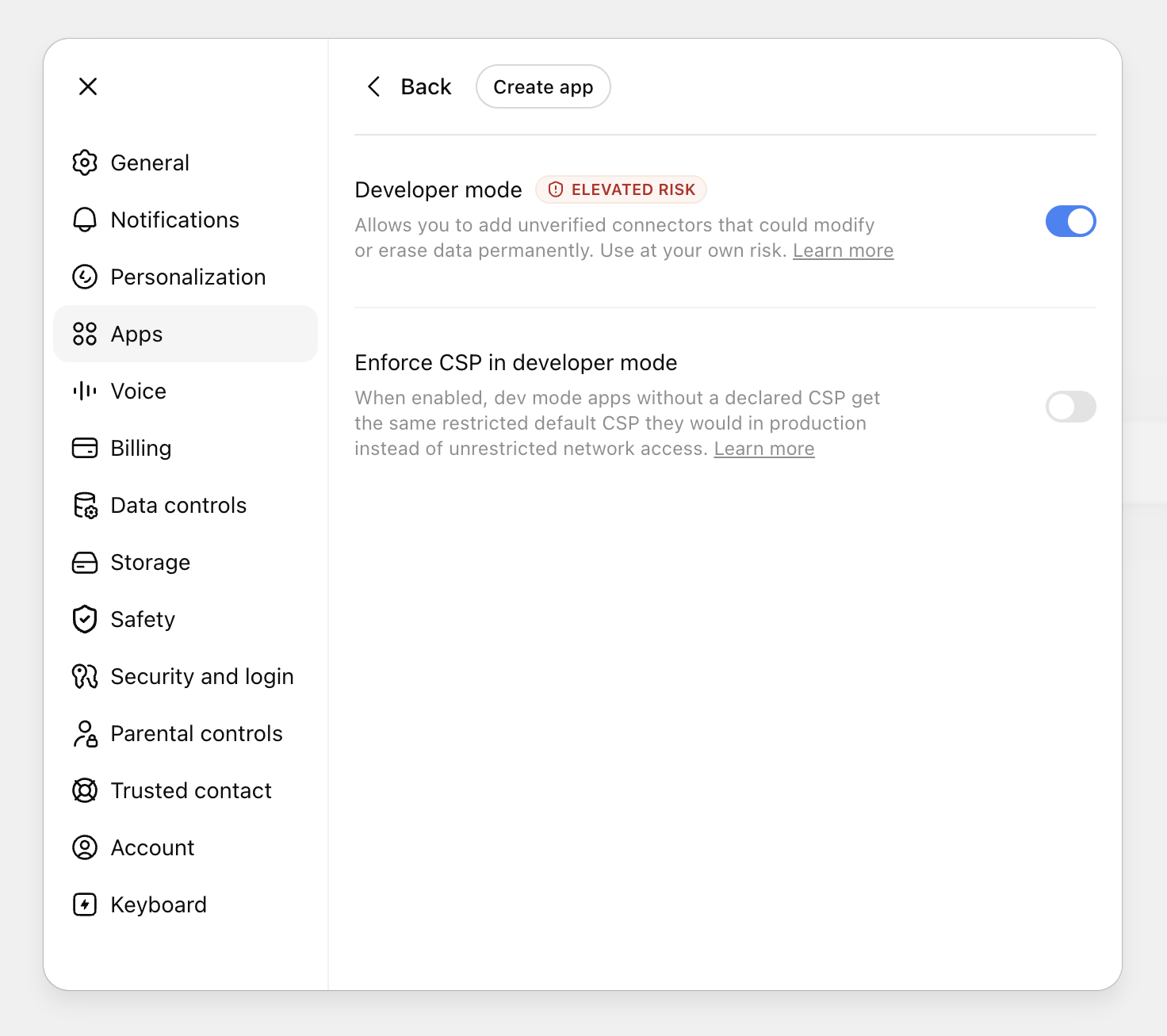
Step 2
Click Advanced Apps, then toggle on Developer mode.
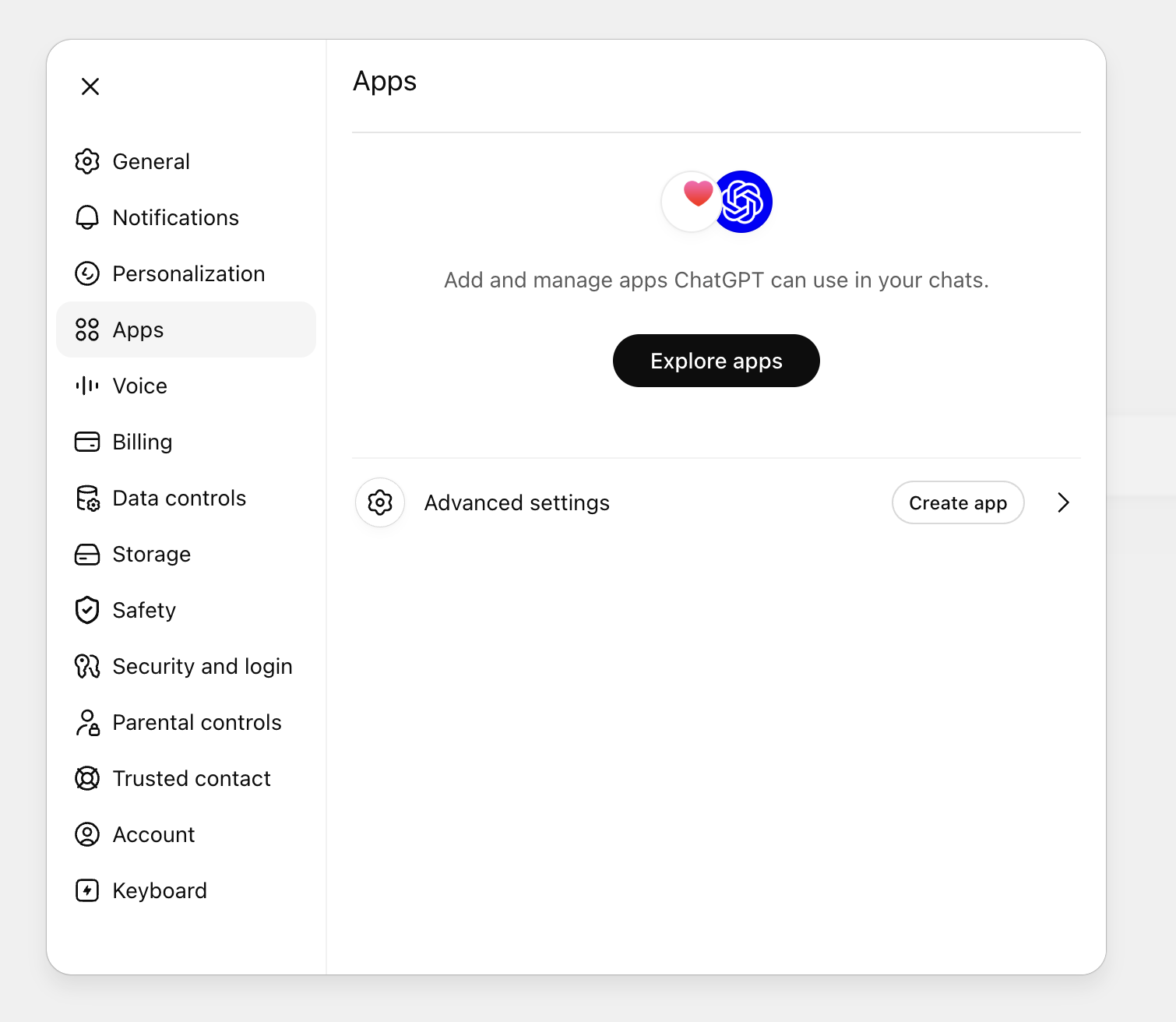
Step 3
Go back to the Apps screen and click Create App.
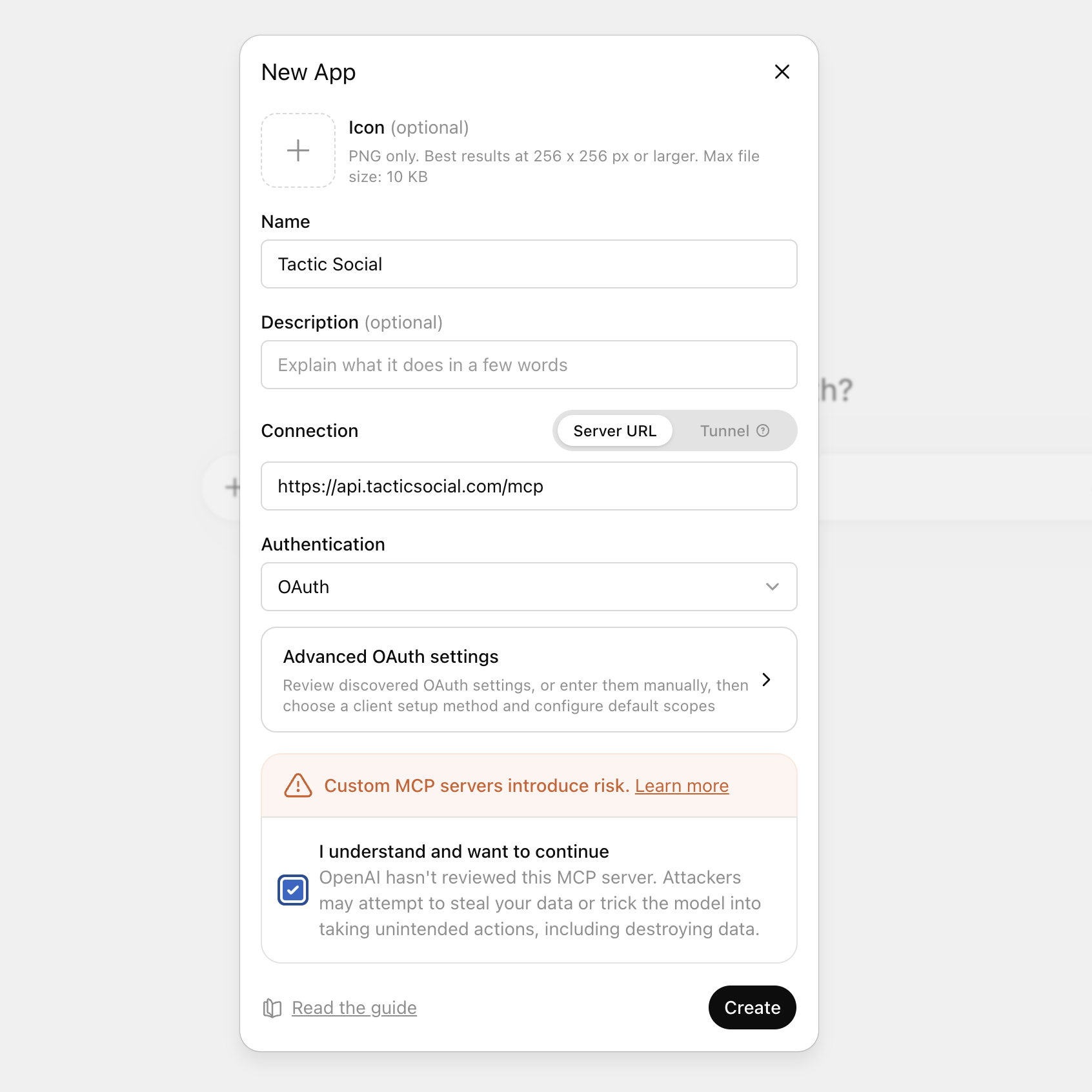
Step 4
Give the app a meaningful name (e.g. Tactic Social), paste the URL below into the URL field, set Authentication to OAuth, check the consent checkbox, then press Create.
https://api.tacticsocial.com/mcp 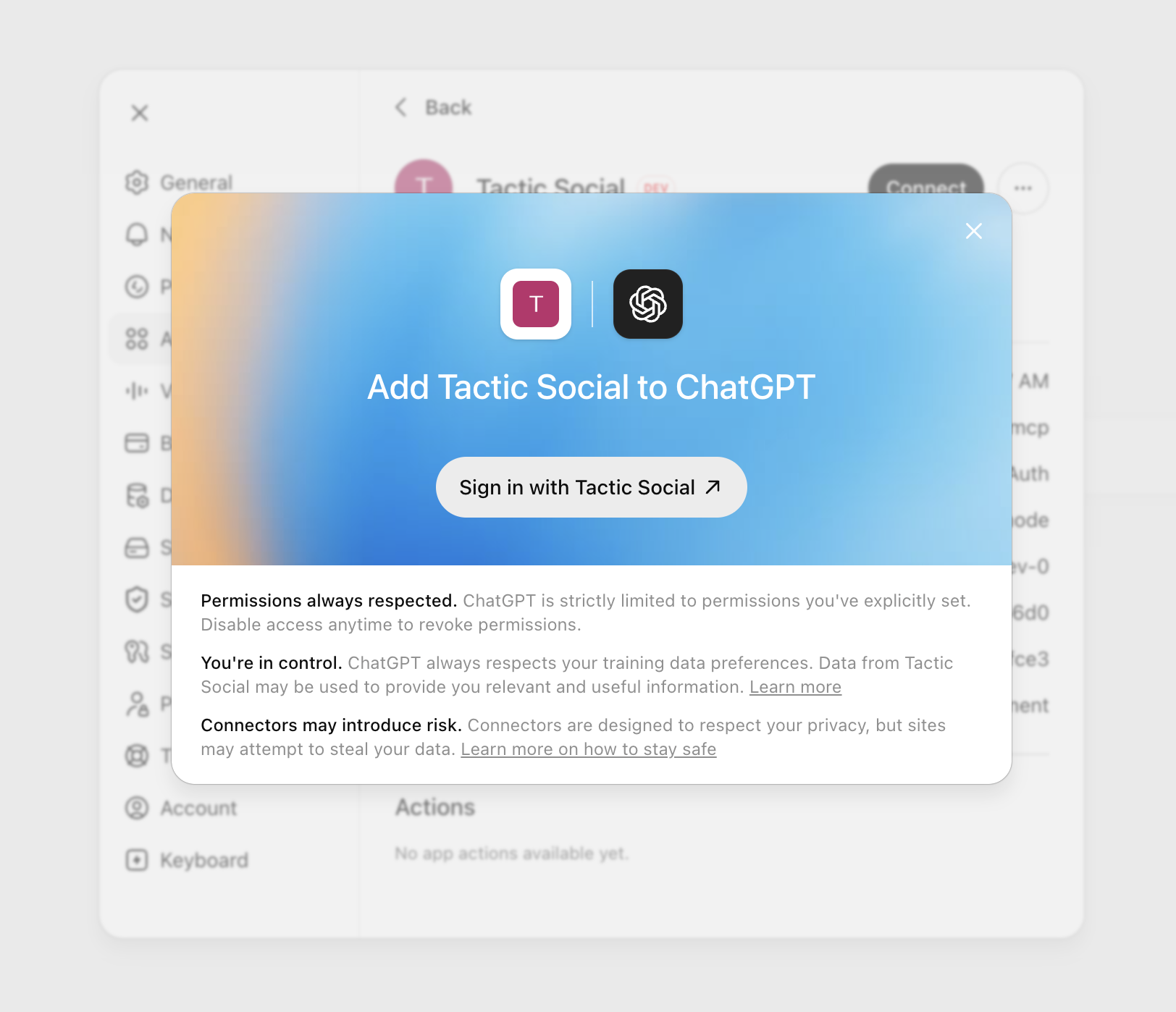
Step 5
ChatGPT will prompt you to sign in to your Tactic Social account. Click Sign in to continue.
Step 6
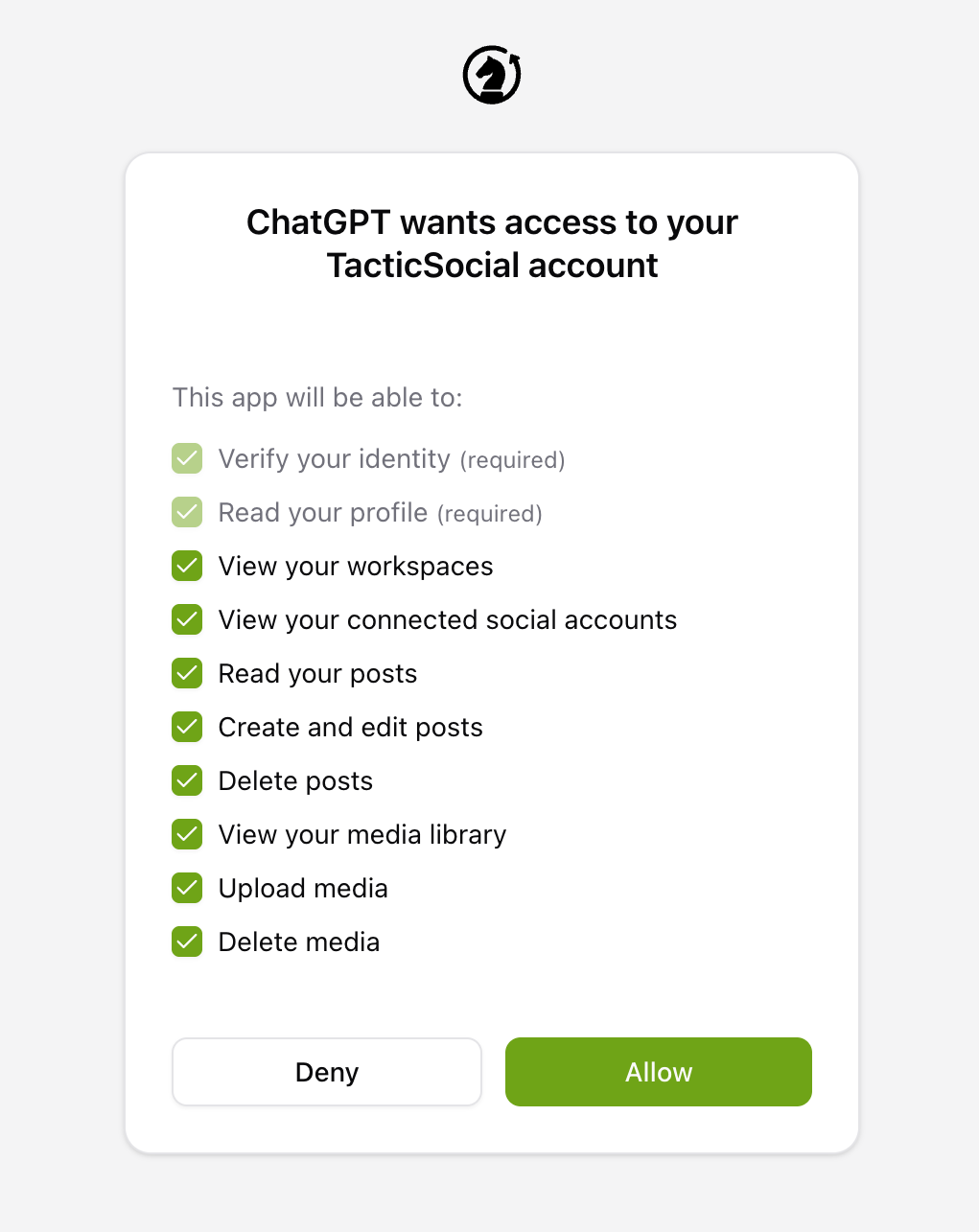
A browser window will open showing the Tactic Social authorization page.
Sign in if prompted, then click Allow to grant access. You'll be redirected back to ChatGPT with the connector active.
Step 7
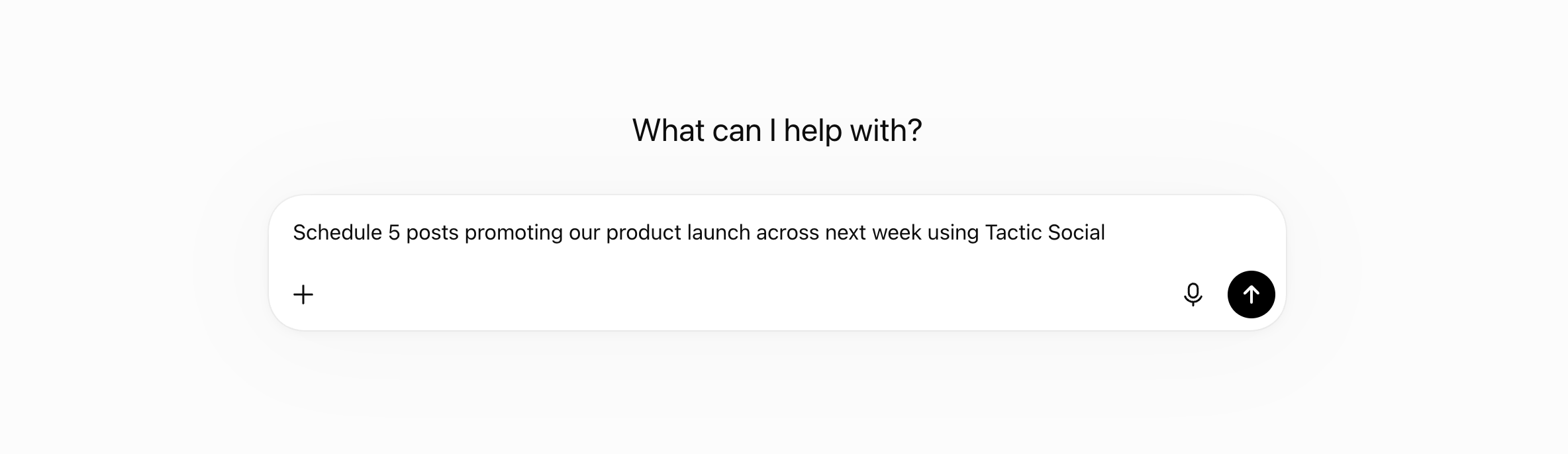
The Tactic Social connector is now active in this chat.
Ask ChatGPT to draft posts, schedule content, or review your upcoming calendar — it'll handle it directly.
Try asking your AI assistant to get started:
Click the prompt to copy it
Tactic SocialPost content to all your social media platforms at once. Effortlessly schedule, crosspost, and optimize your content in one place.
Automation
Platforms
Size Guides
© Copyright 2026, All Rights Reserved by Tactic Social